Category Magento

Enable Magento iPhone Theme for Mobile Browsers

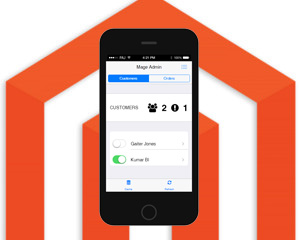
Magento Default IPhone theme

Do you know how many of your customers are visiting your site using a mobile device? If you don’t, take a quick look at your Google analytics and check the figures under Audience -> Mobile -> Overview and Devices. If the % of visits from mobile devices is more than 10% of your total site visits then you might want to think about providing specific content for mobile visitors to your Shop otherwise you maybe losing out on sales.

Mobile Device Visitor stats from Google Analytics

Mobile Device Visitor stats from Google Analytics


Since Magento v1.4.x a built in mobile theme called iPhone is included with the source code.but it is not enabled by default. Here is a quick fix to enable the built in Magento iPhone theme for your Magento store to provide a better browsing experience for visitors using mobile devices.

Login to admin and goto System -> Configuration. Click on General in the left hand menu and then DesignExpand the theme section and then configure the following exceptions under Templates, Skin and Layout.

Matched Expression - iPhone|iPad|iPod|Android|IEMobile

Value – iphone

Configure Exceptions for iPhone Theme

Configure Exceptions for iPhone Theme


Click Save to save your settings.

Notice the user agents in the matched expressions, these define which mobile browsers identified by User Agent should use the mobile theme. The iPad has a fairly large screen so you might decide to exclude that for example.

If you visit your store now with a mobile device you will see the default iphone theme in action.

Magento Default IPhone theme

Magento Default IPhone theme


Actually – its not very good is it, but it’s better than nothing and provides a good place to start building your own mobile theme. Alternatively (and I don’t say this very often) invest some $$ in the Aheadworks Mobile theme because it really is excellent.

Whichever mobile theme you decide to use make sure you test it thoroughly on your staging server, especially if you have a lot of extension modules installed. You may need to customise the mobile theme to achieve the same functionality as you have from your desktop version. Remember to include an option switch from desktop to mobile versions on both sites so that visitors can also decide which theme they want to use.

For testing (if you don’t have a mobile device) set the user agent in your browser to a mobile browser i.e. iPhone. This is possible in Safari by enabling Developer Mode and clicking Develop -> User Agent and selecting a mobile version of Safari from the drop down list. If you are a Mac user you can also use Xcode to run up an iPhone simulator as used for the screenshots above.

If your desktop site uses Flash, now is the time to start replacing it with HTML5 :)


Cannot log into Magento Admin? Magento Admin not loading? Magento Cache Refresh Script

It is possible to lock yourself out of the Magento back end admin interface simply by disabling a module which affects html rendering and stops you from logging back into the admin interface – which you need to do to re-enable the module – DOH! Its a real catch 22 situation.

If you are locked out of Magento admin, or your admin pages are not rendering correctly due to an admin change this post may just save your bacon.

If you have disabled an extension and need to re-enable it but the admin interface is not working, load up PHPMyAdmin and browse to your Magento database. Find the core_config_data table and then page through all the config options until you find the advanced/modules_disable_output rows. Find your disabled module – it will have a value of 1, and change the value back to 0 to enable it.

Paste the following code into a new .php file and save it to the root folder of your Magento store and run it in your browser. It will refresh the Magento cache, and re-enable the disabled module. Hopefully you should then be able to access admin again.

Depending on what has gone wrong with your configuration this may not always work, but if you have modified an admin config that for whatever reason has locked you out of admin then this method may work for you. It certainly is less painless than a full DB restore which is perhaps your other option.

Here is the cache refresh code.

<?php
require_once 'app/Mage.php';
umask( 0 );
Mage :: app( "default" );
$ver = Mage :: getVersion();
$userModel = Mage :: getModel( 'admin/user' );
$userModel -> setUserId( 0 );
Mage :: getSingleton( 'admin/session' ) -> setUser( $userModel );
echo "Refreshing cache...\n";
Mage :: app() -> cleanCache();
$enable = array();
foreach ( Mage :: helper( 'core' ) -> getCacheTypes() as $type => $label ) {
$enable[$type] = 1;
} 
Mage :: app() -> saveUseCache( $enable );
echo "Cache refreshed";

Automatically Tweet New Magento Products

This is a PHP application I developed to automatically Tweet Magento products set with the New From date attribute.

https://github.com/gaiterjones/magento-tweetproducts

Magento Product Tweet v0.5x


  1. Introduction
  2. Prerequisites
  3. Installation
  4. Configuration
  5. Usage


Introduction


Magento Product Tweet is an object oriented PHP script that integrates with a Magento installation to automatically tweet product information for new products set with the New From date attribute in the Magento database.


Magento Product Tweet works with Magento Community Edition version 1.4 or greater and requires PHP 5.3 or greater.


Prerequisites


This application requires a configured Twitter Account and configured Twitter application for the account as well as a Bitly API key to generate short urls.


To configure a Twitter App visit https://dev.twitter.com/


To configure a bitly account visit http://bit.ly


Installation


Extract the source files to a folder on your system i.e. /home/php/magento


A new folder producttweet will be created.


Make sure the subfolders cache, and log are writeable by your current and crontab users.


Configuration


Edit the file applicationConfig.php in /producttweet/config.


Edit

const PATH_TO_MAGENTO_INSTALLATION = ‘/home/www/dev/magento/’;


With the actual path to your Magento installation.


Edit

const FILE_CACHE_FOLDER = ‘/home/php/producttweet/cache/’;


With the full path to the producttweet cache folder.


Edit the Twitter and Bitly api authentication details.


Edit the application configuration settings:


tweetsPerSession – this is the number of products that will be Tweeted each time the script runs.

tweetHeadline – this is the prefix to the Tweet text.

tweetFromHour – Time range to tweet between – from hour between 00 and 23

tweetToHour – Time range to tweet between – to hour between 00 and 23


e.g. to only tweet between 0900 and 2200 set the From hour to 09 and the To hour to 23.


useDecriptionText – set this to short or long to use either the short or long product description for the tweet text.


Save the file.


Usage


To run the script for the first time to check functionality change to the scripts working directory and type


php tweetproduct.php notweet


The script will execute normally but with tweeting disabled. If there are errors with your main configuration you will see them reported now. If no errors are reported the script will return a summary of all products in your Magento database with a New From date that matches todays date.


If no products are returned check that you have set the new from date attribute correctly on a product.


If products are found a summary of each products will be shown including an example of the Tweet text and URL e.g.


[Magento Product Tweet v0.56 22.10.2012]

Session started – 2012-10-22 18:12:33


[Search Results]

//–>

135 – Anashria Womens Premier Leather Sandal / ana

NEW TODAY! Anashria Womens Premier Leather Sandal, Buckle embellished contrasting straps adorn both the heel and… http://bit.ly/VrhMwA – 136

Cache file /root/Dropbox/paj/www/dev/magento/tweetproducts/cache/2012-10-22-9ac43d1842fd2477f500d028b158b496 created.

<–//

//–>

132 – SLR Camera Tripod / ac674

NEW TODAY! SLR Camera Tripod, Sturdy, lightweight tripods are designed to meet the needs of amateur and professional… http://bit.ly/VtXzX1 – 140


Session tweet limit (1) reached, ending session.


[Summary for collection type - newfromdate]

2 product/s found.

1 product/s tweeted this session.

1 product/s tweeted today – 2012-10-22.


If the results and Tweet examples are correct run the script again with the flushcache swith to delete the cache files :


php tweetproducts.php flushcache


And then run the script without the notweet switch to test live tweeting.


A tweet success or failure message will be displayed for each product, and the tweets should appear in your twitter feed.


Script activity will be logged in the ./log folder. You can delete the log files with the flushlogs switch.


To automate tweeting completely add the script to your crontab, e.g. to run the script every 5 minutes use


*/5 * * * * /usr/bin/php -f /home/php/magento/tweetproducts.php silent


Note the silent switch disables all script output.


If the script detects errors use the showtrace switch for more information and email the log file to extensions@gaiterjones.com for assistance.


PAJ 22.10.2012


Facebook Magento Store Front Shop Tab Application

I saw an email last week from a company offering a Facebook store front tab application service for Magento that imports your Magento products and creates a basic Magento store front presence in a Facebook tab application. I thought this was a pretty neat idea especially if you are using Facebook as a marketing tool for your Magento e-commerce site. What I did not find so neat was the price, they want upwards of $1000.00 per year for a fully dynamic storefront with up to date products and support.

Having recently done some work both with Facebook tab apps and exporting Magento product collections in PHP I thought that this is actually a pretty easy task to achieve and coded up an example Facebook Magento Store Front running in a Facebook tab that presents a simple view of your products, product information and a direct link to the product on your Magento web for customers to place orders.

The app talks directly to your Magento database so it will always be up to date. It supports multi language stores and will detect the customers browser language and switch languages accordingly.

This is really a quick win app, integrating quickly with your Magento installation and takes about 30mins to setup and get up and running in Facebook.

Check out my demo Facebook storefront / shop tab app here.

DOWNLOAD

Download the latest version of the application source code here.

Basic installation and usage instructions below.

12.11.2012 – v0.97 – bug fixes and changes to user configuration setup, user config now held in .ini file.
22.11.2012 – v1.0.1 – first public release


Magento Facebook Store Front Tab


Conversions From the Tab


Magento Facebook Store Front Tab Application


  1. Introduction
  2. Prerequisites
  3. Installation
  4. Configuration
  5. Usage
  6. Languages


Introduction


Magento Facebook Store Front Tab is an object oriented PHP script that integrates with a Magento installation to render product HTML designed to be displayed within a Facebook Tab. The application is able to render various product views, all products, new products, categories etc. with a simple product description and link to your actual Magento web store for purchases.


The application supports normal desktop clients.


Prerequisites


This application requires a configured Facebook Account, Facebook Page and a configured Facebook application. A good knowledge of your Magento installation and Operating System is assumed as well as some experience with Facebook applications and PHP.


Installation


Extract the source files ideally to a sub folder of your Magento installation. e.g. /home/www/magento/facebook


A new folder ‘magentotab’ will be created. Feel free to rename this folder if required.


The application will then be accessible from your browser via the following url


http://www.YOURSHOP.com/facebook/magentotab


Where www.YOURSHOP.com is the url to your Magento shop frontend. If you install the application somewhere other than your Magento installation folder then you will need to browse to the application via your configured web server path.


Configuration


Edit the file applicationConfig.php in /magentotab/config.


Edit

const PATH_TO_MAGENTO_INSTALLATION = ‘/home/www/dev/magento/’;


With the actual path to your Magento installation.


Edit fbAppID, fbAppSecret and fbUrl with the App ID, Secret and URL from your configured Facebook app.


To display a menu on the product page set the showMenu constant to true. Depending on traffic and your hosting etc. the application may run faster when the menu is disabled.


To exclude categories from being shown in the product menu, configure the excludedProductCategories constant with a list of category id’s separated by a comma, e.g.


const excludedProductCategories=’4,5,16,17,18,19,22,23,25,27,28,29,30,31,32,33,34,35,37′;

For google UTM tagging configure the googleUTMTag constant with a valid Google UTM URI.


The bannerImage constant holds the name of the graphic file used as the banner at the top of the Facebook Tab page.


Set the productLimit constant to define the number of products that will appear per page. This should be divisible by 9.


Set the defaultCollectionType constant. This defines the default product view that will be shown. Options are


newfromdate – Products set with the NEW FROM attribute – i.e. New Products.

allproducts – All Products

categoryproducts – Products from a category.


Determine which product description will be shown for the product

useShortDescription=true – Use short description

useLongDescription=true – Use long description


Configure language options


const storesConfigured=’1,2,3′;

const storesLanguage=’de,en,fr’;

const storeDefaultLanguage=’en’;


In this example there are three stores configured with the id’s 1, 2 and 3. The store languages for store 1,2,3 are de, en, fr – German, English, French. And the default language is ‘en’ – English.


The showContact and showAbout constants enable a Contact and About button on the menu when set to true. This is currently in development.


The allowStandAlone constant lets the application run in a standalone browser when set to true. When set to false the application will redirect to the Facebook URL of the app. Set to true for debugging the app standalone outside of Facebook.


Set the pageLikeRequired constant to true if visitors must first Like the Facebook page the tab is running in before they can access the application.


Set the URIToApp value to the URI path of the app on your server.


Save the configuration file.


Usage


To run the script for the first time browse to the URL of the script as defined above


i.e. http://www.YOURSHOP.com/facebook/magentotab


If the Magento configuration path is correct you should see a list of products displayed, with or without menu options as specified in the configuration.


If the application works correctly standalone then you are ready to integrate it with Facebook.


To install the application as a Facebook Tab ensure that your Facebook application has been created and configured with the correct canvas URL’s to the application and then goto the following link


http://www.YOURSHOP.com/facebook/magentotab?fbtab=true


This will return a link that will start the Tab installation process via Facebook. Select the Facebook page to install the Tab on.


When the Tab is installed goto your Facebook page to confirm that the app is working.


Languages


To translate some of the interface text used in the application to your language, simply create a new language file in the php/locale folder named XX.txt where XX is your two letter language code. Use an existing language file as a template and add your translations to the file in the format


Text=TranslatedText.


Make sure your language settings are configured correctly in the application. You can force the application to the language you want using the storeid variable in the url


i.e. http://www.YOURSHOP/facebook/magentotab/?storeid=2


Will force the application to the language configured for store id 2.


Cannot Save a Magento Category with over 1000 Products – max_input_variable

Today I discovered a Magento category that would not update. When I tried to update the category properties and save the category the ‘please wait’ dialog box remained on the screen indefinitely.

My error report alerting extension alerted me via email that there were new error reports in /var/report.

The error report showed :

“Warning: parse_str() [<a href='function.parse-str'>function.parse-str</a>]: Input variables exceeded 1000. To increase the limit change max_input_vars in php.ini.”

I edited my apache php.ini and added

max_input_variable=2500

Restarted apache and I was able to update and save my category again. Note that the max_input_variable property was not present in php.ini, I had to manually add it.


Generate EAN Barcodes for All Magento Products – Magento EAN Barcode Generator

Following on from my post about mass exporting Magento data, I had the requirement to also mass generate EAN13 barcodes from scratch for all Magento products in a store.

The barcode graphic functionality came courtesy of Folke Ashberg and I simply added the functionality to my basic export php script.

The script creates the EAN code and checksum (currently programmed for EAN13) using the a 5 digit product number derived from the Magento product id and your registered manufacturer code. The barcode image is generated on the fly and cached locally.

My requirement was to generate the EAN code and not the barcode image so I am not 100% if the image is to the EAN standard, I think the font may need to be changed, however if you require EAN numbers and images, e.g. for Amazon etc. then this is a good place to start!

You can see an example of the scripts output here.

Auto Generated Magento Product EAN13 Barcode


Here is an example of a simple php script to generate the EAN13 codes for all Magento products and export them as a csv file. Install the script in a folder below your main Magento installation folder e.g. …/magento/myexport/EANCodes.php

<?php
// Magento export EAN codes
// blog.gaiterjones.com
// 10.10.2012 v0.1
//

require_once '../app/Mage.php';
umask(0);
Mage::app();
Mage::app()->loadArea(Mage_Core_Model_App_Area::AREA_FRONTEND);

header("Content-type:text/octect-stream");
header("Content-Disposition:attachment;filename=exportMyEANCodes.csv");

// define ean code prefix - country / manufacturer
$eanPrefixCode="0123456";

// load collection
$storeId    = Mage::app()->getStore()->getId();
$product    = Mage::getModel('catalog/product');
$products   = $product->getCollection()->addStoreFilter($storeId)->getAllIds();

// csv header
echo '"sku","ean"'. "\n";

// loop through all products
foreach($products as $productid)
{
// load product data
$product = Mage::getModel('catalog/product')->load($productid);

// get sku
$sku = $product->getSku();
// generate ean13
$ean=ean13_check_digit($eanPrefixCode. str_pad($product->getId(), 5, "0", STR_PAD_LEFT));
// output csv data
$output='"'. $sku. '","'. $ean. '"';
echo $output. "\n";
}

// function to generate ean13 checksum digit
function ean13_check_digit($digits){
$digits =(string)$digits;
$even_sum = $digits{1} + $digits{3} + $digits{5} + $digits{7} + $digits{9} + $digits{11};
$even_sum_three = $even_sum * 3;
$odd_sum = $digits{0} + $digits{2} + $digits{4} + $digits{6} + $digits{8} + $digits{10};
$total_sum = $even_sum_three + $odd_sum;
$next_ten = (ceil($total_sum/10))*10;
$check_digit = $next_ten - $total_sum;
return $digits . $check_digit;
}
?>

You might want to validate the generated EAN codes, specifically to validate the 13th checksum code, do this here.

How to Patch the Magento Zend Platform Vulnerability

Magento announced a new Zend Platform vulnerability on July 5th 2012.

To patch the vulnerability from the command line simply use the patch command as show below, replacing the url to the Magento patch file with the appropriate link to the patch for your Magento version. More info and direct links to already patched files here.

If you are using a pre 1.4 version of Magento, i.e. v1.3.3 then follow the workaround option detailed in the Magento announcement to disable the XMLRPC index method in app/code/core/Mage/Api/controllers/XmlrpcController.php -  ”any integrations that rely on the XMLRPC API functionality will no longer work after this workaround is implemented.”


me@www:/home/www/dev/magento# wget -qO - http://www.magentocommerce.com/downloads/assets/1.7.0.2/CE_1.5.0.0-1.7.0.1.patch | patch -p0
patching file lib/Zend/XmlRpc/Response.php
patching file lib/Zend/XmlRpc/Request.php

Magento Discount Coupon Code for Facebook Likes

The Facebook “Like” is an important Social Media Marketing tool. It instills customer confidence and enables new marketing opportunities. Increasing the number of likes your e-Commerce site has can sometimes be difficult but one way to really boost those likes is to offer a reward in the form of a discount code if customers like your Facebook page.

I wanted to accomplish this with a standalone PHP application embedded into a Facebook page tab. The goals were to step the customer through connecting with the Facebook application, liking the page and generating / managing the discount codes and Magento coupons.

We want to take full advantage of the marketing information we can glean from Facebook so another requirement was so store the customers Facebook profile information in a database along with the generated discount code.

We can also generate a wall post on the customers Facebook wall to ensure our offer is shared with their Facebook friends.

The application uses the Facebook API to communicate with Facebook and loads Magento externally to generate the Magento coupon sales rules dynamically.

Here are the main features of the application:

1. Connect the customer to the Facebook application and save the customers Facebook profile information  to a MySQL database.

2. Get the customer to click the Like button for this Facebook page

Customer has connected with the application in Facebook and must click the Like button to continue.


3. Generate discount code and Magento coupon.

Customer has liked the page , the discount code and Magento coupon are dynamically generated and displayed to the customer.


and post to the customers Facebook wall (optional).

Share the love, an automatic wall post is created when a discount code is issued.


4. Manage subsequent attempts to generate codes by the same Facebook user. Of course customers can create multiple Facebook accounts to obtain codes so your discount amount has to be thought out properly and relevant terms and conditions applied to try and prevent abuse. How much are Facebook likes worth to you?  A good idea would be to make the discounts valid for a certain spend amount, $15 discount when you spend over $100 for example. Remember if you already have 1,000 likes on your Facebook page, you are potentially giving away 1,000 discount codes to existing customers as this application does not distinguish between new and old likes!

A discount code has already been generated for this Facebook account.


The customer can now copy and paste the code directly into the Magento frontend store coupon box.

Generated discount code is entered at checkout and discount is shown in cart.


Test the application here.

Download the application source code here check out the readme file for installation instructions. The main installation requirements are

PHP5.x/MYSQL
Public webspace on the same server as your Magento installation
A valid configured Facebook Tab application.
Magento 1.3+

Edit the config.php file with your configuration settings and create the database and database table using the SQL in the readme file.

This could be developed as a Magento module too, the advantages I can see for a module would be to allow the whole process to run within your Magento shop instead of a Facebook page tab.


Customiseable, Printable, HTML Invoice for Magento – FREE Magento Extension

Magento Automated Social Media Marketing FREE Extension

I needed to create a custom invoice that was easily printable for a Magento store. The built in PDF generation system (at least in earlier versions of Magento) is not very flexible and did not meet my requirements. After some searching about I found some code contributed by another Magento user which I modified to meet my requirements and present here as a free Magento module for anyone looking for a similar solution.

The solution looks great – see example below and contains some nice touches including the option to create a watermark graphic on the invoice and a comments box.

DOWNLOAD

Tested with Magento CE 1.3.3 and 1.7.0.0

download version 0.1 (last updated 07-11-2012) of the extension here

16.08.2012 – fixed to show invoice number if one exists
07.11.2012 – Added option to show images. Product loaded in invoice.phtml to enable extraction of other product attributes to show on invoice.

WISHLIST

  • Add an Email button to email the HTML invoice directly to the customer.

Installation

To install, simply download and extract the source files and copy to your Magento root folder. If you use a customised admin template be sure to change the path for the adminhtml design templates to match your installation, the default path is app/design/adminhtml/default/default/template.

Refresh your Magento system cache, log out and back into admin to enable the module and confguration area.

Configuration

The extension is configurable under system > configuration > my extensions > html invoice. The configuration consists of some options to help customise the html invoice.

LOGO URL
Enter the URL to an image to use as a logo to appear on the invoice. Default if blank is no logo.

WATERMARK URL
Enter the URL to a watermark image if you want to use one. Default if left blank is no watermark image.

HEADER TEXT
Enter the text (or html) you want to appear at in the header of the invoice, your company name and address for example. Default is no header

SHOW COMMENTS BOX
Select Yes to enable the comments box on the invoice, this lets you type a short comment that will appear on the printed invoice.

FOOTER TEXT
Enter the text (or html)  you want to appear on the bottom of the invoice. Default is no footer text.

ADD VAT /TAX TO SHIPPING
I had the particular requirement to ensure the shipping cost included TAX/VAT enabling this option will show the shipping cost including TAX/VAT. Default is NO

Save any options you have changed and goto an order in Sales > Orders. Select an order to view and you should see a new PRINT button on the top right hand side of the order view screen.

HTML Invoice for Magento

New Print button in Sales > Orders > Order view


Clicking the print button will open the HTML invoice for this order in a new browser tab. An invoice example is below.

Customiseable, Printable HTML Invoice for Magento

Customiseable, Printable HTML Invoice for Magento


To customise the invoice further just take a look at the code in

app/design/adminhtml/default/default/template/paj/htmlinvoice/invoice.phtml

This contains all the formatting for the invoice and is fairly easy to modify for your exact requirements.

To extract individual product information to display on the invoice insert the following within the foreach loop

$_product = Mage::getModel('catalog/product')->load($_item->getProductId());

Now you can echo out product information e.g. custom attributes

$_product->getMy_custom_attribute();


Acknowledgments again to the original developer for the bulk of the code used in this solution.

Upgrade from Magento 1.6.x to Magento 1.7.0.0 using the Command Line

In a previous post I documented how to quickly install Magento for a development environment (or a new Live shop I guess). With Magento Community Edition version 1.7.0.0 recently released lets look at upgrading from 1.6.x.x to 1.7.0.0 using the command line mage (formerly pear) utility.

BACKUP YOUR SYSTEM

Before you attempt any upgrades to your Magento systems, development, staging or live make sure you have everything backed up! Ideally do your testing in a virtual environment so you can easily revert to a system snapshot if there are problems with the upgrade.

Upgrading from 1.6.x to 1.7 should be fairly painless if you are using a standard theme and do not have too many third party extensions installed. Upgrading from earlier versions such as 1.4 might not be so straight forward and you should make sure you test the upgrade thoroughly. Earlier versions might require an upgrade path from 1.4 to 1.5 to 1.6 etc. which is not possible from the command line.

For my development 1.6 system I am fairly happy to let the upgrade run, I have backed up my database and installation folder and am ready to rock and roll.

Command line upgrade

From your magento installation folder i.e. /var/www/magento lets first reset our folder and file permissions to ensure they are correct for the installer.

find ./ -type f -exec chmod 0644 {} \;

find ./ -type d -exec chmod 0755 {} \;

Remove old session files

rm -rf var/cache/* var/session/*

make sure mage is executable

chmod 755 ./mage

Initialise mage

./mage mage-setup .

Run the upgrade

./mage upgrade-all

This may take a while to run as the various components are downloaded and installed. When complete remove unwanted packages.

rm -rf downloader/pearlib/cache/* downloader/pearlib/download/*

Hello Magento v1.7.0.0

Login to your admin and check your cache status, refresh any caches as necessary. Check you are now running the correct version of Magento and perform the usual system checks, frontend registration, login, checkout etc.